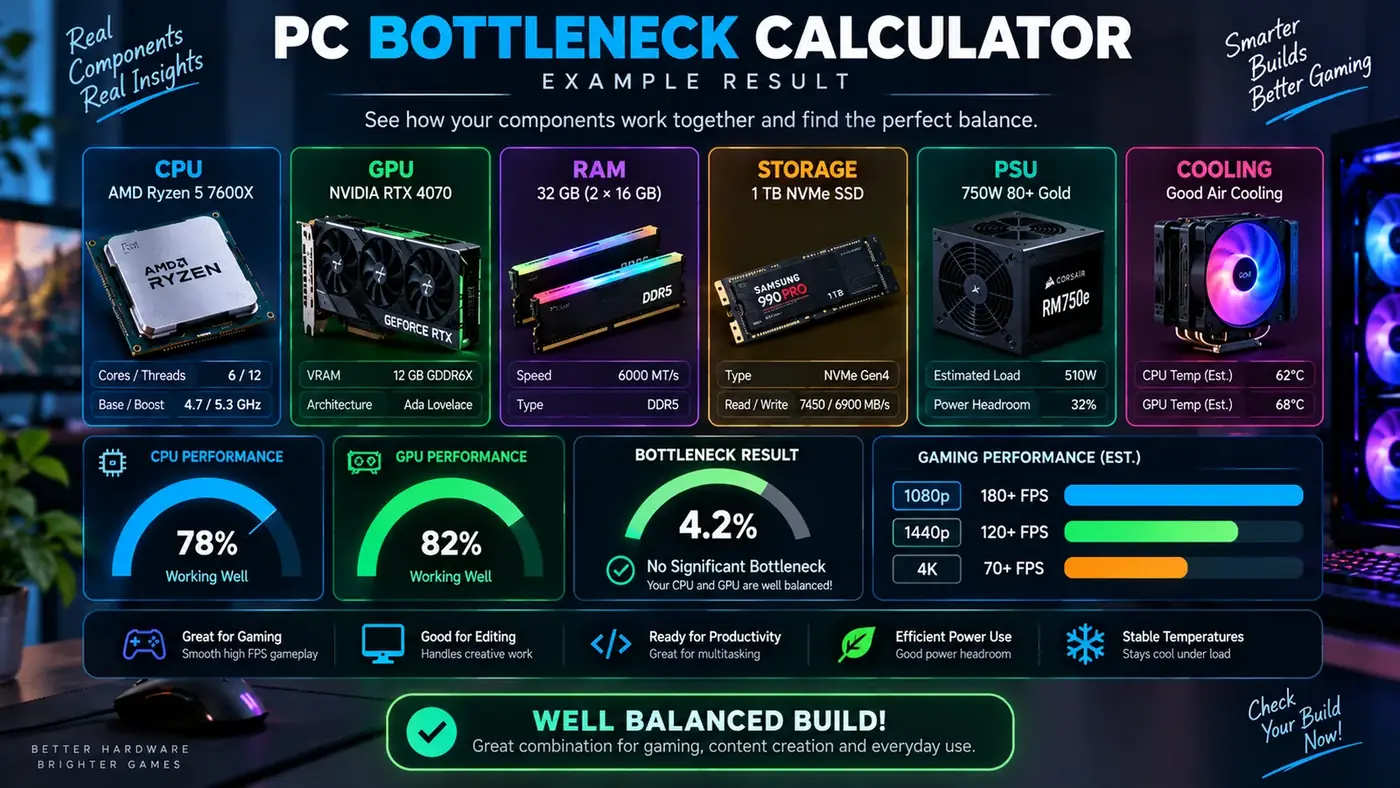
CPU–GPU balance
Estimates which component is more likely to limit performance for your resolution and workload.
Measure CPU and GPU balance, memory headroom, storage health, thermals and power—in one clear, practical report.
Your selected parts should work well together at 1440p.
Planning estimate only. Results vary by game, settings, cooling, drivers and component condition.
A useful diagnosis looks at the whole system. PC Health Lab converts your configuration into focused checks you can act on.
Estimates which component is more likely to limit performance for your resolution and workload.
Flags temperatures that may reduce boost clocks, cause throttling or shorten component life.
Checks whether installed RAM is appropriate for gaming, content creation or everyday use.
Explains when storage affects loading, updates and responsiveness—even when average FPS is unchanged.
Compares estimated platform load with your PSU capacity and allows a safety margin for spikes.
Turns all checks into one practical next step, helping you avoid spending on the wrong component.
This tool uses relative performance tiers and workload adjustments. It is designed for planning—not as a replacement for measured benchmarks on your exact machine.
CPU and GPU options are assigned relative tiers, power estimates and generation-aware characteristics.
Higher resolutions shift more work to the GPU; high-refresh gaming raises CPU demand; creative work needs more memory.
Memory, drive type, temperature and PSU capacity are scored separately so a balanced pair cannot hide another weakness.
The lowest meaningful score shapes the recommendation, while the final result remains a weighted overall health estimate.
Quick explanations for the questions that matter before you upgrade, repair or build.
A bottleneck occurs when one component reaches its practical limit before another. In gaming, the CPU prepares work and the GPU renders it. The limiting side changes with the game, settings, resolution and target frame rate.
No PC is perfectly balanced in every task. A modest mismatch is normal. It becomes worth addressing when it prevents you from reaching your target experience or leaves a costly component consistently underused.
Monitor per-core CPU use, GPU use, memory, clock speeds and temperatures during the exact game or workload. A consistently underused GPU alongside saturated CPU threads suggests a CPU limit; near-full GPU use usually indicates a GPU limit.
Often, because rendering more pixels increases GPU load while much of the CPU's frame preparation work stays similar. The same build can be CPU-limited at 1080p high refresh and GPU-limited at 4K.
Insufficient RAM can cause stutter and heavy paging. Slow storage mainly affects boot, loading and asset streaming rather than steady average FPS, though modern games may stutter when data cannot arrive quickly enough.
It is an educational planning estimate based on relative tiers and your inputs. Silicon quality, cooling, drivers, background software, game engines and exact settings all affect real performance. Confirm important buying decisions with benchmarks for your exact combination.
Learn how to identify PC bottlenecks, compare CPU and GPU performance, improve gaming FPS, manage temperatures, choose RAM and plan upgrades.
Use GPU utilization, per-core CPU load, temperatures and frame time to identify the real limiting component.
Understand why 1080p high-refresh gaming can be CPU-bound while 4K gaming is usually more GPU-heavy.
Review cooling, storage health, memory stability, startup software, drivers and power delivery.
Choose useful memory capacity for gaming, streaming, creative work, large mods and multitasking.
A PC bottleneck is not one permanent percentage. It is the component or condition that limits a specific workload. The answer changes with the game, resolution, graphics settings, target frame rate and applications running in the background.
Record GPU utilization and clock speed, VRAM use, CPU load per core, system memory, component temperatures and frame time. Overall CPU percentage can be misleading because one important game thread may be fully loaded while other cores are not.
Lower the resolution without changing other settings. A large frame-rate increase points toward a GPU bottleneck. Little improvement with busy CPU threads points toward a processor or game-engine limit.
An online PC bottleneck calculator is useful for planning, but direct monitoring is stronger evidence after the system has been built. Change one variable at a time, compare repeatable results and spend money only when the same limitation appears consistently.
A Bottleneck Calculator is a simple way to check how well your CPU, GPU, RAM and other hardware components work together. A PC bottleneck happens when one component cannot keep up with the rest of the system and becomes a performance limitation. This can affect FPS, frame rates, game smoothness, application performance and overall system performance.
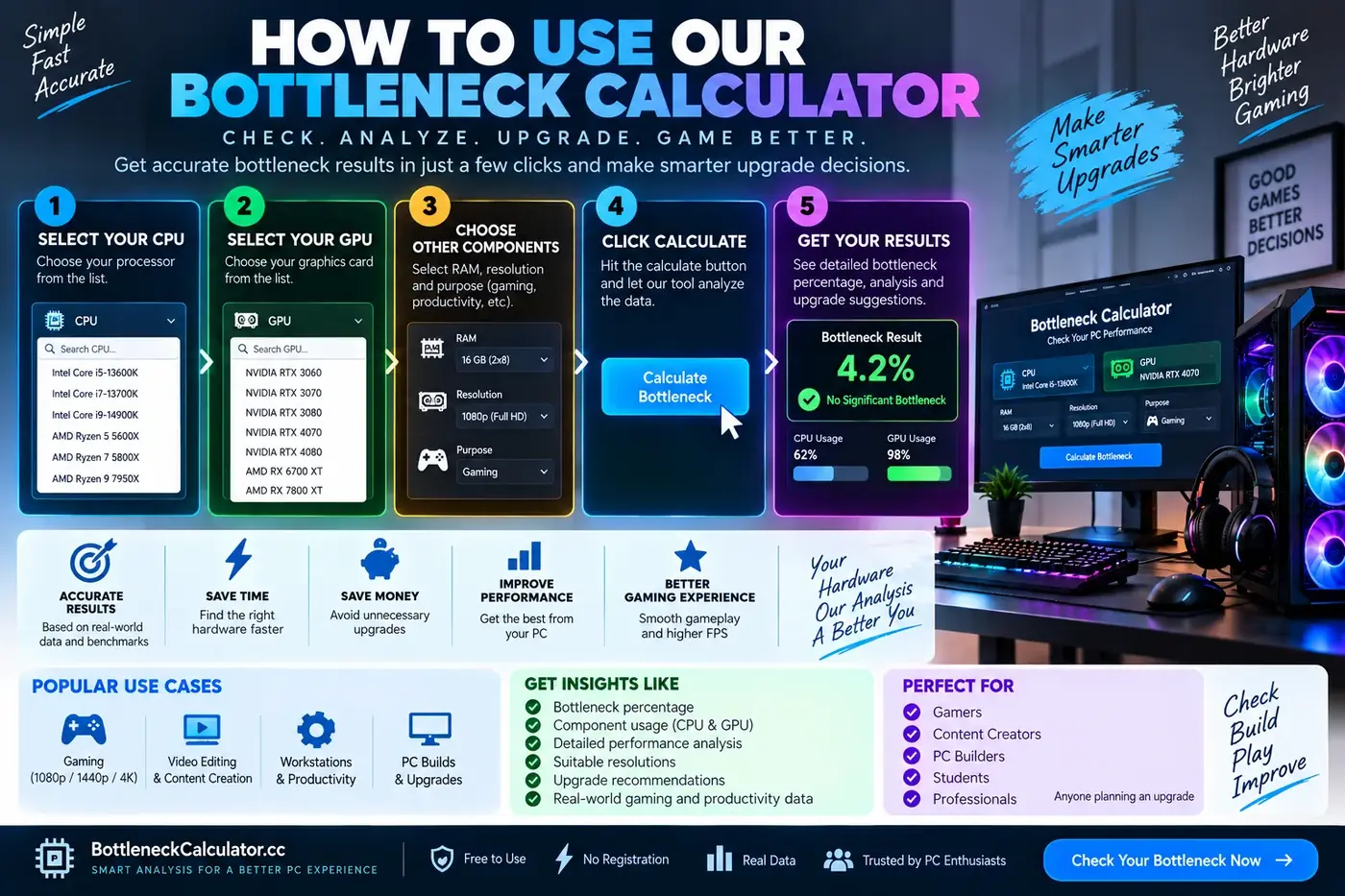
Our calculator helps you analyze your processor, graphics card, memory, resolution and intended workload to identify a possible CPU bottleneck or GPU bottleneck before you buy new hardware. This makes it useful for choosing compatible PC parts, planning a PC build, checking an existing computer or deciding which component should be upgraded first.
In many gaming situations, it is normal for the GPU to operate at high utilization because demanding games place a heavy graphics workload on the graphics card. If the CPU reaches very high usage while the GPU remains significantly underused, however, the processor may be limiting performance.
The relationship changes with screen resolution and settings. At 1080p, a system may become more CPU-bound when targeting high FPS, while 1440p and 4K generally place more rendering work on the GPU. The same CPU and GPU combination can therefore produce different results according to resolution, graphics quality, refresh rate, game engine and workload.
Checking before purchasing hardware can prevent an expensive mismatch. A powerful graphics card paired with a much weaker processor may not deliver its full potential in CPU-intensive games. An extremely powerful CPU paired with a weaker GPU may leave processor capacity unused in GPU-heavy gaming.
RAM capacity, memory speed, VRAM, storage, cooling, drivers, background applications and power or thermal limits also influence real-world performance. A bottleneck percentage is an estimate of component imbalance—not a promise that the same percentage of FPS will be lost in every application.
Gaming, streaming, video editing, 3D rendering and programming can place different pressure on CPU and GPU resources. Combining a calculator estimate with direct system monitoring gives a more useful picture of where performance is limited.
The goal is not simply to reach a zero-percent bottleneck. Every computer has a component that becomes limiting under a particular workload. The useful goal is a balanced system for your needs, whether you want higher FPS, smoother frame times, better productivity, faster rendering or a practical upgrade path.
Practical advice: use the PC Bottleneck Calculator as a planning tool, then confirm important purchase decisions with exact-game benchmarks and monitoring from your own machine.
A PC bottleneck is a hardware component or operating condition that reaches its useful limit before the rest of the system, restricting performance in that workload.
A CPU bottleneck occurs when the processor cannot prepare work quickly enough for the graphics card or application. High per-core CPU usage with lower GPU utilization can be a sign.
A GPU bottleneck occurs when the graphics card is the main rendering limit. High GPU utilization is common, especially at 1440p, 4K and demanding visual settings.
A small estimated imbalance is normal. Whether it matters depends on target performance, game, settings and frame-time stability—not the percentage alone.
Yes. Insufficient RAM can force the system to move data to storage, producing pauses, slower response and poor frame-time consistency.
Slow storage mainly affects startup, loading, updates and asset streaming. It usually changes steady FPS less than the CPU or GPU, but can still cause visible pauses.
Yes. Lower resolutions and very high frame rates can increase relative CPU pressure. Higher resolutions increase GPU rendering work and often move the limit toward the graphics card.
Upgrade the component that consistently limits your real workload. Test settings and background tasks first, then compare the cost and expected improvement of the targeted upgrade.
They are planning estimates. Accuracy varies with benchmark quality, software, drivers, temperatures and exact settings. Use measured results for final decisions.
PC Health Lab was created to help people understand computer performance before they spend money on upgrades. Hardware specifications can look impressive in isolation, but a fast PC depends on how the processor, graphics card, memory, storage, cooling and power delivery work together. Our goal is to turn those relationships into clear, practical guidance for gamers, creators, students, professionals and first-time PC builders.
We believe a useful bottleneck result should do more than display a dramatic percentage. It should explain which component is more likely to limit a selected workload, how resolution changes the balance, whether supporting hardware may affect the experience and what the user can check next.
Our browser-based calculator compares the relative capability of a selected CPU and GPU, then adjusts the analysis for resolution and intended use. It also considers installed RAM, system-drive type, peak load temperature and estimated power-supply headroom. The result combines a written verdict with visual scores for system balance, memory, thermals and power.
These scores are educational estimates rather than laboratory measurements. Real performance depends on the exact game or application, graphics settings, background software, operating-system configuration, drivers, BIOS settings, cooling, silicon variation and component condition. For an important purchase, we recommend combining our estimate with reputable benchmarks for the exact hardware combination.
Our standard: clearly distinguish estimates from measured results, explain important limitations and recommend verification before a costly upgrade.
Our guides are written to answer real questions about CPU bottlenecks, GPU limitations, gaming FPS, frame-time stability, RAM capacity, storage performance, temperatures and upgrade planning. We aim to use understandable language without oversimplifying the technical details that influence a decision.
The site is designed for anyone comparing PC parts, troubleshooting low GPU usage, investigating high CPU load, planning a gaming build or deciding whether more RAM, better cooling or a stronger power supply is needed. Experienced users can use the report as a fast comparison, while newer users can follow the supporting explanations and guides.
The calculator performs its estimates locally in the browser and does not require an account. We design pages to remain readable on mobile and desktop devices, support light and dark themes and present important results in both visual and written form.
Good technical resources improve through reader feedback. If you notice an incorrect hardware entry, unclear explanation or result that deserves review, contact us at info.bottleneckcalculator@gmail.com. Please include the relevant page, your hardware configuration and any supporting benchmark or monitoring information.
For calculator feedback, technical corrections, privacy questions or partnership inquiries, email us at:
info.bottleneckcalculator@gmail.com
Click the address to open your email application.
This single-file version processes selections locally and stores only the theme preference on the device. It includes no analytics, advertising or tracking scripts. Update this policy and add legally required consent controls before installing Google Analytics, Google AdSense or another cookie-based service.
The contact form opens the visitor's email application. Contact messages are delivered through FormSubmit to info.bottleneckcalculator@gmail.com.
Calculator results are planning estimates. They do not guarantee frame rates, hardware compatibility, stability or component life. Verify motherboard support, BIOS, connectors, physical clearance, cooling and PSU quality before purchasing hardware.
PC Health Lab is not responsible for purchase decisions, data loss or hardware damage resulting from reliance on automated estimates.